
PRESENTERS

eSpeakers Technology Partners can create applications that integrate directly with the data in your eSpeakers account. Applications may use your profile information, or they may access your calendar and event data from EventCX. To allow one of these third-party programs to access your eSpeakers data, you will provide them with your API Key. This key is a unique sequence of characters that gives third party applications the ability to read and make changes to your eSpeakers data. Treat your API key like a password. Applications you give your key to have access to all of your eSpeakers data.
Where Can I Find My API Key? #
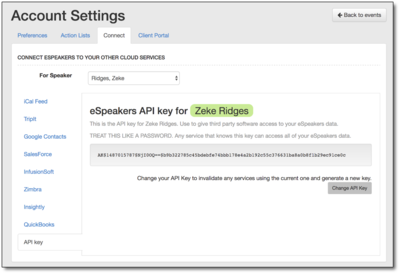
A third-party application may ask you for your API Key. To find it:
- In
EventCX
, find the account menu (your username in the upper-right corner) and choose SETTINGS. - On the SETTINGS screen, choose the CONNECT tab.
- On the CONNECT tab, choose the API KEY item from the left side.
- On the API KEY screen you can see your current API key displayed. It is a long sequence of numbers, letters, and symbols.
- Use your mouse to SELECT and COPY the key. Be sure to select the entire key and not miss characters at the beginning or end.
How Do I Revoke Access for a Third-Party App? #
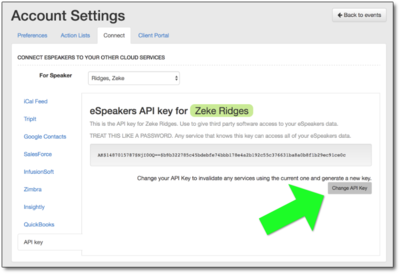
If you no longer want a third-party app to have access to your eSpeakers data, you can change your API Key. When you change your API key, all third party apps using it will no longer have access. If there were other apps that you still want to have access, you will need to update each of them with the new API Key.
- In
EventCX
, find the account menu (your username in the upper-right corner) and choose SETTINGS. - On the SETTINGS screen, choose the CONNECT tab.
- On the CONNECT tab, choose the API KEY item from the left side.
- Click the CHANGE API KEY button.


