
PRESENTERS Display daily calendar items from your personal Google calendar on the calendar view in EventCX. It’s very handy to see both types of calendar items (business events + daily personal items) in the same view. You can do this by bringing any iCalendar feed with your daily personal items into eSpeakers for display on the calendar. These instructions explain how to do this for a feed from Google Calendar, but it works with any calendar that can provide an iCalendar feed. To subscribe to your daily Google calendar items:
Generate Your Google Calendar iCal Feed URL #
(June 2018) There are currently three versions of Google Calendar (G-Suite, Google Calendar, and the Old Google Calendar) If you’re using the G-Suite, use these instructions:
- Log in to your
Google Calendar
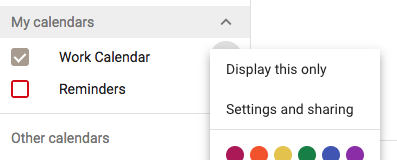
. - Find MY CALENDARS in the left side of the screen. One or more individual calendars will be listed here. Hover over the specific calendar you want to import, and click on the three-dot menu button that appears. Select “Settings and sharing” from the menu that appears.
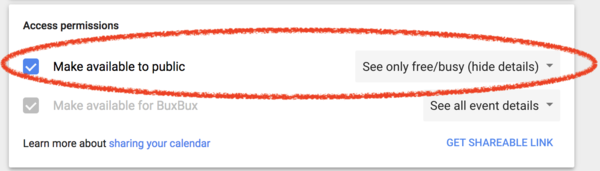
- Scroll down the Settings page until you reach the “Access Permissions” section.
- Check to option to “Make available to public”
- Scroll down the Settings page until you reach the “Integrate Calendar” section.
- Locate the sub-section labeled “Public address in iCal format” (it should be the 3rd gray box)
- Use your mouse to highlight and COPY the URL displayed

If you’re using the NEW version of Google Calendar, use these instructions:
- Log in to your
Google Calendar
. - Find MY CALENDARS in the left side of the screen. One or more individual calendars will be listed here. Hover over the specific calendar you want to import, and click on the three-dot menu button that appears. Select “Settings and sharing” from the menu that appears.
- Scroll down the Settings page until you reach the “Integrate Calendar” section.
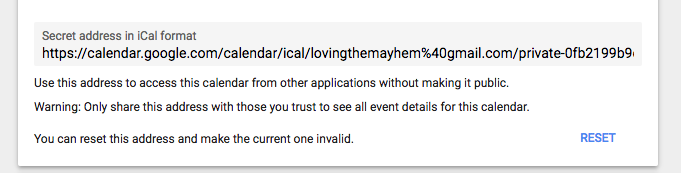
- Locate the sub-section labeled “Secret address in iCal format”
- Use your mouse to highlight and COPY the URL displayed.
If you’re using the OLD version of Google Calendar, use these instructions:
- Log in to your
Google Calendar
. - Find MY CALENDARS in the left side of the screen. One or more individual calendars will be listed here. Click the DOWN ARROW next to the specific calendar you want to import. Be sure to click the arrow next to the individual calendar you’re importing, and not next to the “my calendars” heading.
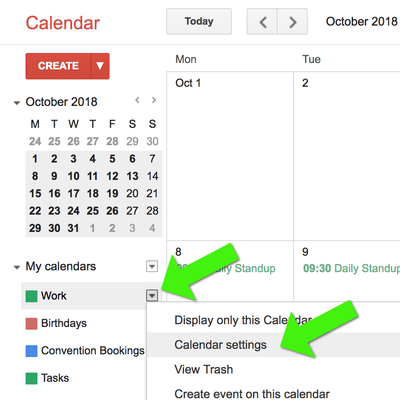
- On the calendar settings screen, find the section labeled PRIVATE ADDRESS, and click the button labeled ICAL.
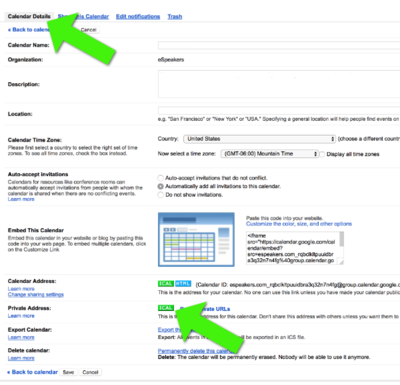
- Use your mouse to highlight and COPY the URL displayed.
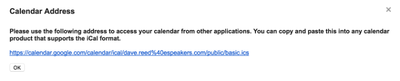
Add the Feed URL to Your EventCX Calendar #
Now that your Google calendar feed URL is in your computer’s clipboard and ready to paste, it’s time to put that address into EventCX.
- In EventCX, click the user menu (in the top right corner, labeled with your username), and choose SETTINGS.
- On the settings screen click the CONNECT tab on top, and the ICAL FEED tab at left.
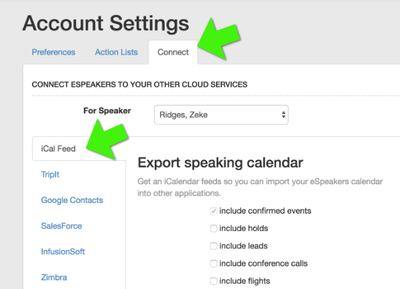
- In the section labeled IMPORT DAILY CALENDAR, find the field labeled ICALENDAR URL and paste in the address copied earlier from your Google calendar.
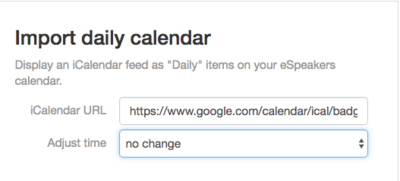
- Click SAVE to complete the process.
- The personal, daily items from your Google calendar will now be displayed on your eSpeakers month and year calendars with a pink dot in the upper-right corner.
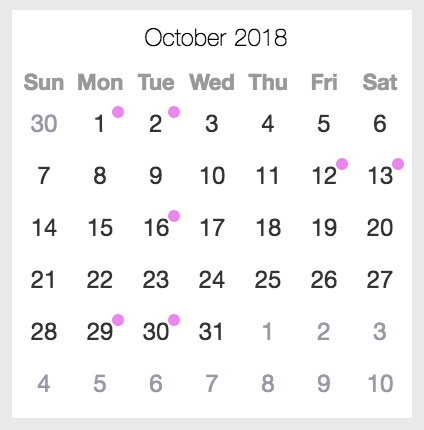
Note : The personal, daily items from your Google calendar will not be displayed to clients if you choose to share your speaking calendar on your profile, on your website with the LiveSchedule plugin, etc. Note : The personal, daily items from your Google calendar are read-only ; make any changes to daily items on your Google calendar. Make changes to business items in EventCX.


