
PRESENTERS The notes area on an event is a great way for you and other staff members to keep any extra written information about the event. Wouldn’t it be nice to also see all of the email about that event in the same place?
What is Notemail? #
Notemail provides a “magic” email address for each event that looks something like event+25323.bc23@espeakers.com . Any email sent to that email address will be turned into a note attached to the event.
The most convenient way to use this magic email address is to include it in the CC: line when you correspond with the client and others about the event. Their reply will also be added as a note when they reply-all with the magic address included as a CC: address.
How to Get Event Related Email to Automatically Copied to the Event Notes? #
To have an email automatically copied into the notes for an event, just make sure the event’s unique magic email address is included in the TO: or CC: address line of the email. To see an event’s unique email address:
- Select the event so its details are displayed.
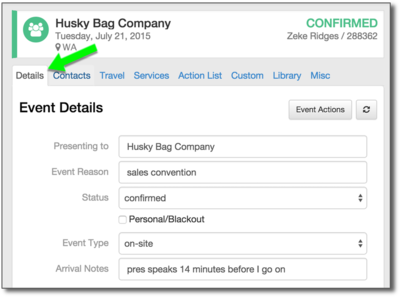
- Select the DETAILS tab, and scroll down to the NOTES area near the bottom.
- Click the LINK EMAIL control to display the magic email address for that event. SELECT and COPY the address to use in an email.
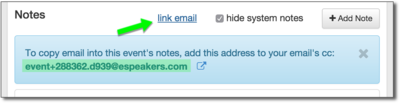
or
Click the LINK ICON to the right of the address to open your default email program with the magic address in the CC: line and the subject filled in for you.
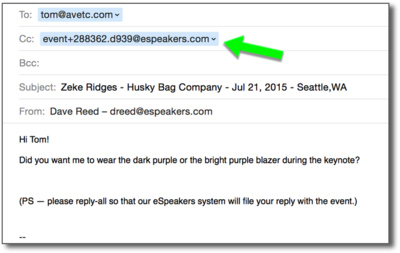
You can also open a pre-filled email from the contacts tab:
- Select the CONTACTS tab of the event, and click the email address of any listed contact.
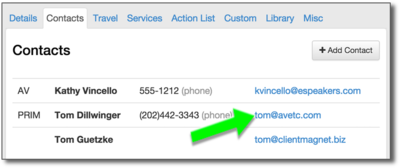
- Your default email program will open with the magic address in the CC: line and the subject filled in for you.


