
If you’re having issues with eSpeakers services, our developer team might suggest clearing either your browser cache and/or your “local storage”. Here are the steps for each, in every browser.
Google Chrome #
To clear local storage:
- Press F12 on your keyboard. You can also right-click and select “Inspect Element”. If on Chromebook, press the search button and the “+” at the same time.
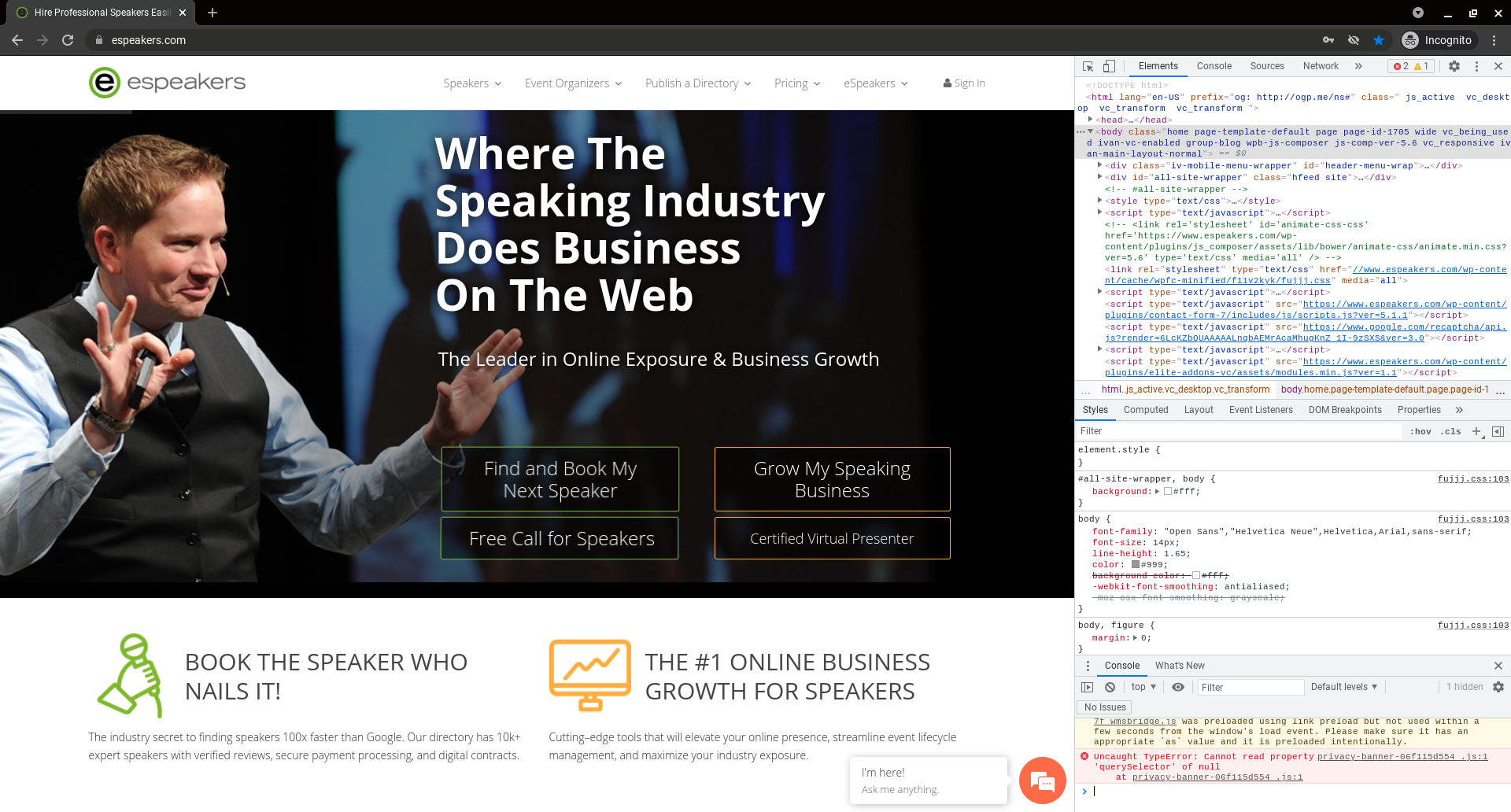
- The developer tools window will open. At the top, there will be a navigation menu. Click the “>>”.
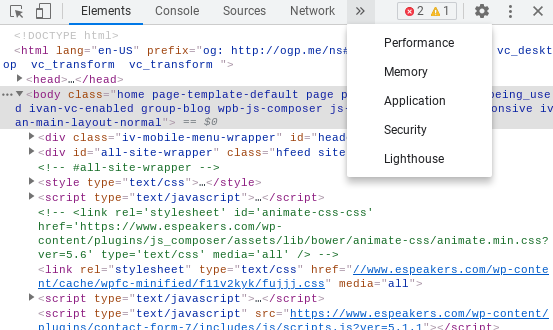
- A drop-down menu will open. Select “Application”.
- In the side menu, under “Application”, click “Storage”.
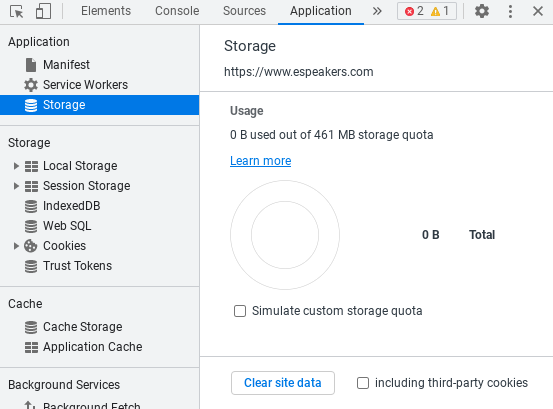
- In the window that appears, you should see a button that says “Clear site data”. Make sure all the checkmarks are selected, and then click the button.
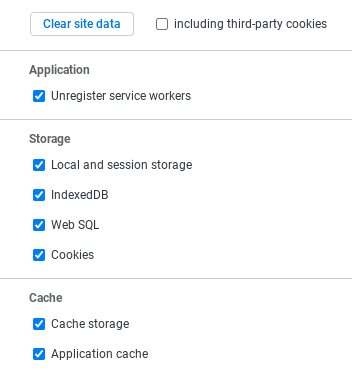
- Click the “X” at the top right of the developer tools window to close it.
- Refresh the page.
To clear browser cache:
- Press Ctrl+Shift+Delete
- In the window that pops up, choose a time range or select “All time”.
- Check “Cookies” and “Cached images and files”.
- Click “Clear data”.
Firefox #
To clear local storage:
- Press F12
- In the developer tools window that pops up, click the “Storage” tab.
- On the sidebar that pops up, click “Local Storage”.
- Click the drop-down arrow and right click the site URL.
- Select “Delete all”
To clear browser cache:
- Click the menu button (three stacked horizontal lines at the top right).
- Click “Options”.
- Click the “Privacy and Security” panel.
- In “Cookies and Site Data” section, click “Clear data”
- Check both boxes in the pop-up and click “Clear”
Safari #
To clear local storage:
- Click “Safari” > “Preferences”.
- In the Preferences window, select the “Advanced” tab.
- At the bottom, check “Show develop menu in toolbar”.
- Close Preferences.
- Click “Develop” > “Show Web Inspector”.
- On the “Console” tab, type localStorage.clear() in the field and press Enter.
- Close the developer tools and press F5 to refresh the page.
To clear browser cache:
- Press CMD+ALT+E (Quick)
- Alternative: Make sure “Develop” menu is visible using above instructions.
- Click “Develop” > “Empty Caches”.
- Refresh the page.
Microsoft Edge #
To clear browser cache:
- Press CTRL+SHIFT+DELETE
- Select “Cookies and cached data”
- Click “Delete”
- Refresh the page.


