As you manage your Marketplace whitelabeled site, you’ll want a small group of employees to have administrative access to the site, so that they can do things like:
- Change the site’s look and feel with customized CSS or logo.
- Change the wording on the site by altering the dictionary file.
- Add/remove users.
- Help customers by creating and managing shortlists.
To Add an Administrative User #
- Sign into your Marketplace Whitelabel account using the SIGN IN button in the upper right of the menu bar. Sign with a user who already has ADMIN privileges on the system. Your Marketplace Whitelabel account was created with at least one when you signed up.
- Use the MY ACCOUNT control in the upper-right and choose MANAGE.
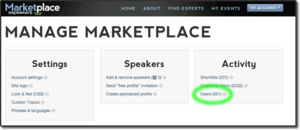
- From the Manage screen, find the ACTIVITY section and choose USERS.
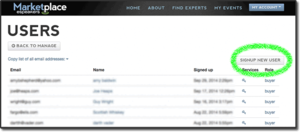
- On the Users screen, click the SIGN UP NEW USER button.
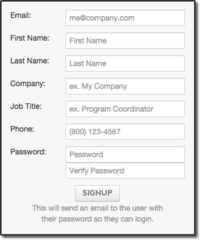
- Fill out the new user form with contact information for the new person who should have administrator access. Click the SIGNUP button to complete.
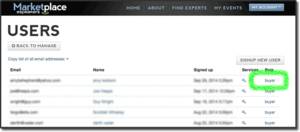
- Find the new user in the list of users (probably near the top of the list)
- In the new users’s ROLE column, click the word BUYER to change their access level to ADMIN.