
Want to get a list of your event contacts from EventCX so that you can use them in a CRM, email blast, etc?
The CONTACTS EXPORT report will do the job. Even though it’s a “report”, it produces a downloadable CSV or VCF file that you can open with a spreadsheet (CSV) or add to your address book app (VCF).
The report also allows you to choose a date range for the events to which the contacts are tied. This is useful for sending out Christmas cards, for example. You can specify the date range as the past year, choose “confirmed” events only, and get a list of the contacts who hired you this year. If you’d like, instead, to export every contact, just set the date range to start earlier than your earliest event, through later than your most future event.
To generate the download file of your contacts:
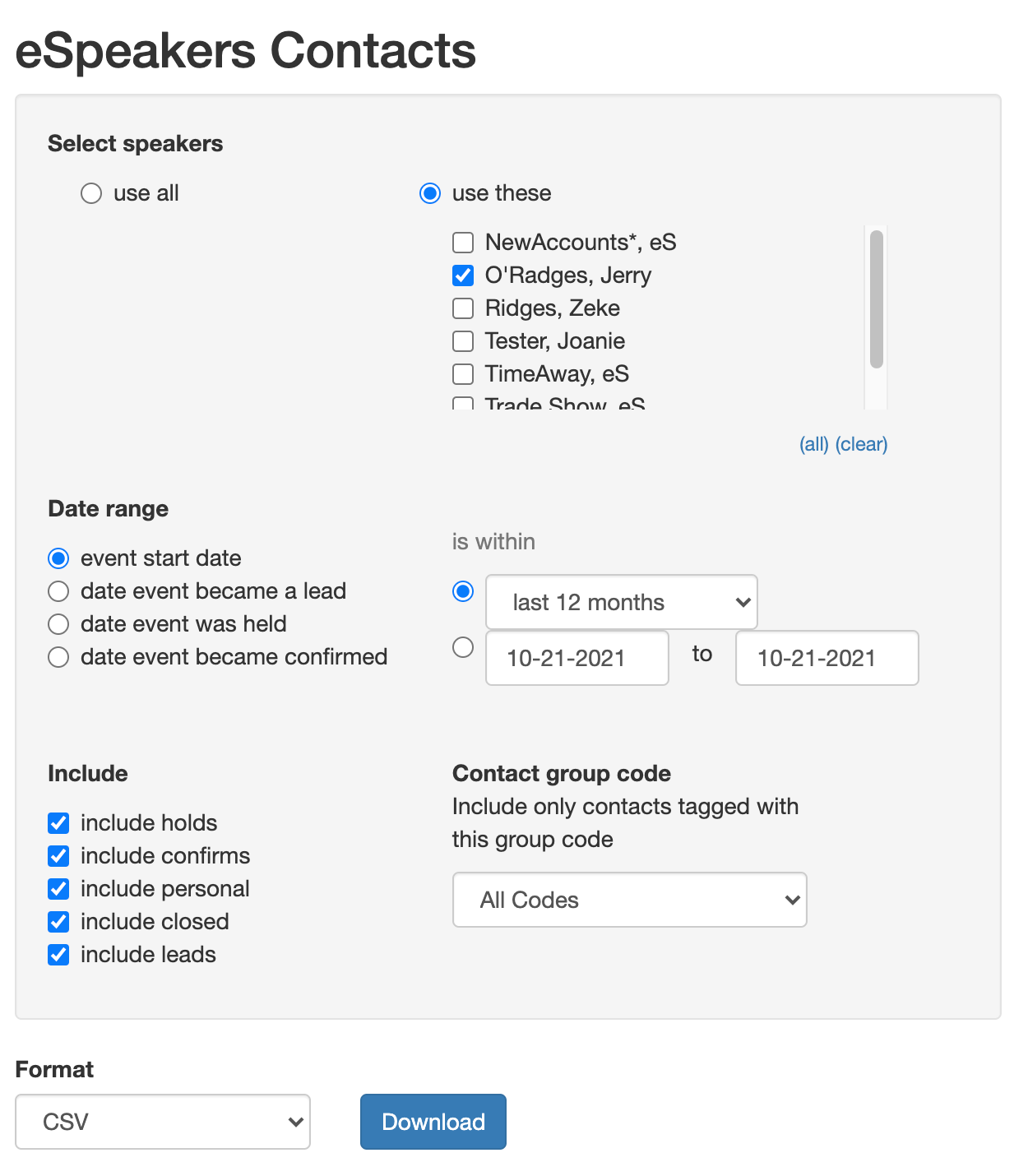
Sign in to eSpeakers- Select MY REPORTS from the left sidebar, then VIEW ALL REPORTS
- On the report select screen, click CONTACTS EXPORT
- On the report setting screen, select:
- The SPEAKER/s you wish to use (only visible if your login is associated with more than one speaker account)
- The DATE RANGE.
- Check the boxes to INCLUDE only the events you’re interested in (HOLDS, CONFIRMS, etc.)
- Optionally select a GROUP CODE from the dropdown. This is useful if, for instance, you want to select only bureau representatives that you tagged as “BURE”.
- Choose your download format. CSV is the most common and will open in a spreadsheet app or import into a contact manager or email system.
- Click the DOWNLOAD button to get your file.
If you choose the CSV output, your export contains these columns:
- EID (the id number of an event the contact is associated with)
- NAME (first and last name)
- ADDRESS (street address)
- CITY (city)
- STATE (state or province)
- COUNTRY (country)
- ZIP (zip or postal code)
- PHONE (main phone number)
- EMAIL (email address)
- MOBILE (mobile phone number)
- FAX (fax number)
- COMPANY (the contact’s company)


