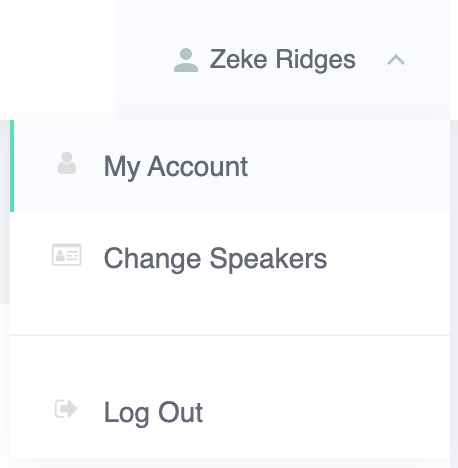
Open the account menu by clicking your name in the upper-right corner of the screen and clicking MY ACCOUNT.
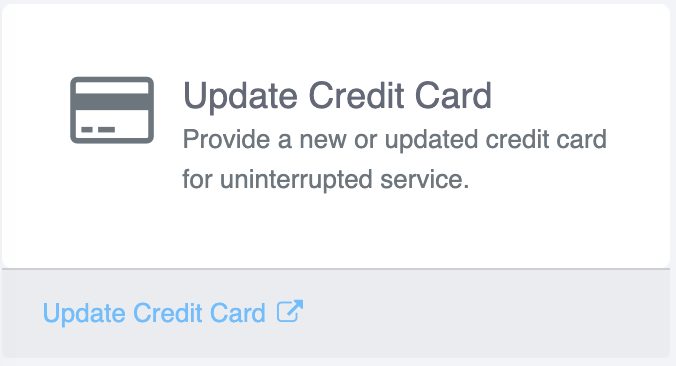
On the account screen, click the UPDATE CREDIT CARD link.
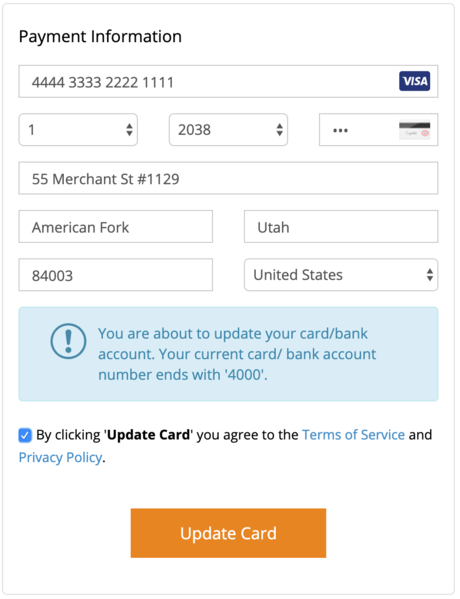
You will be presented with a screen showing your existing card details (if any) and fields to update. Fill out the fields and click UPDATE CARD to confirm your changes. Note that any past due invoices may be collected once a valid card is added.
Open the account menu by clicking your name in the upper-right corner of the screen and clicking MY ACCOUNT.
On the account screen, click the VIEW INVOICES link.
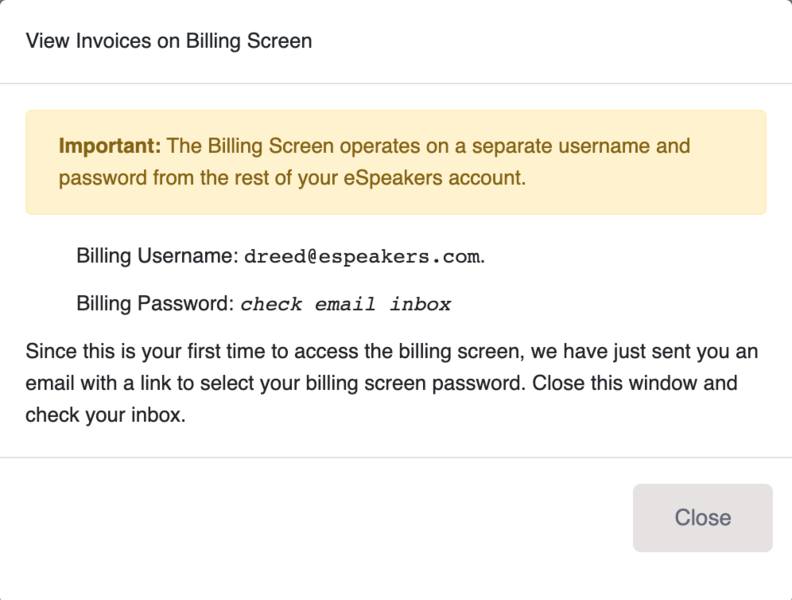
If this is your first time to access the Billing Screen, you will need to select a password for the billing system.
THE PASSWORD FOR THE BILLING SCREEN IS INDEPENDENT OF YOUR MAIN ESPEAKERS ACCOUNT PASSWORD. Setting or changing your billing system password will not change the password you use to access the rest of your eSpeakers services.
You’ll receive an email with a link to set your billing screen password and gain access to the Billing Screen.
If you have previously selected your Billing Screen Password, you’ll see a link to click. Click the link and you’ll be able to sign into the Billing Screen with your email address.