Your browser stores certain information in between browsing sessions (caching). Usually, this is a good thing because it eliminates the need to retrieve the cached data again and speeds things up.Sometimes, though, we want to retrieve fresh data instead of using the stored (cached) version. In these cases it’s useful to “clear the cache” so that your web browser will be forced to retrieve fresh information. You’re probably reading these instructions because something is amiss and you’re trying to get it to work. You don’t normally need to clear your cache.
There are 4 ways to clear your browser cache for eSpeakers applications: #
Try these one at a time until your problem is solved.
These instructions are written for the Chrome browser, with your EventCX calendar displayed.
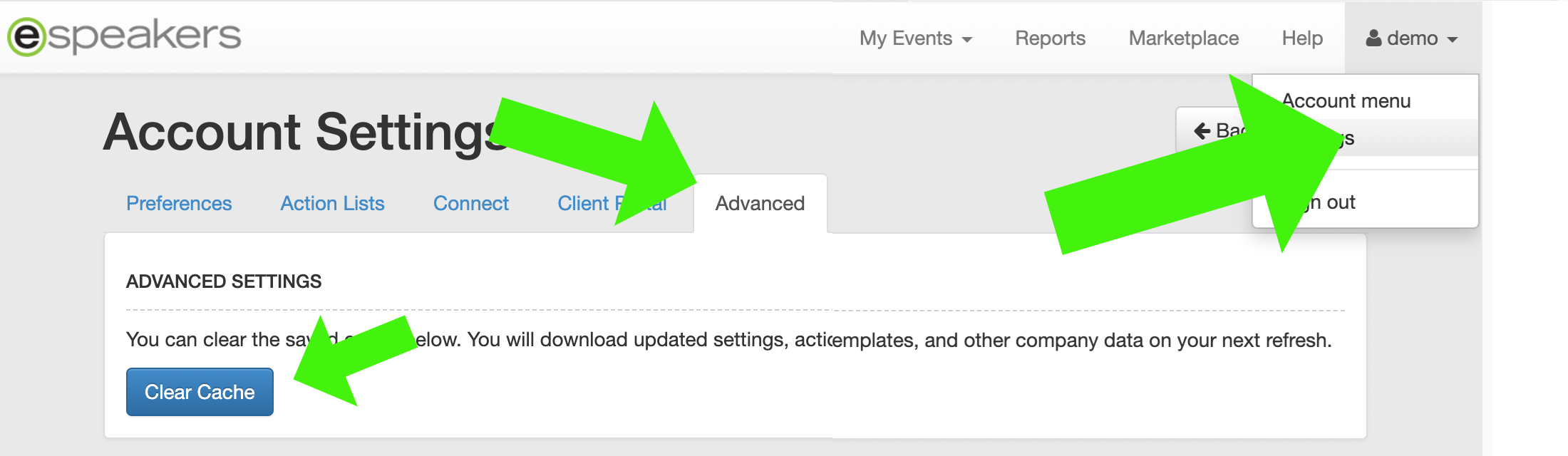
Click your username in the upper-right corner of EventCX, and click SETTINGS.Click the ADVANCED tab, and click the CLEAR CACHE button. Wait until you get a message that it is complete, and then click the reload button on your browser to refresh the page.
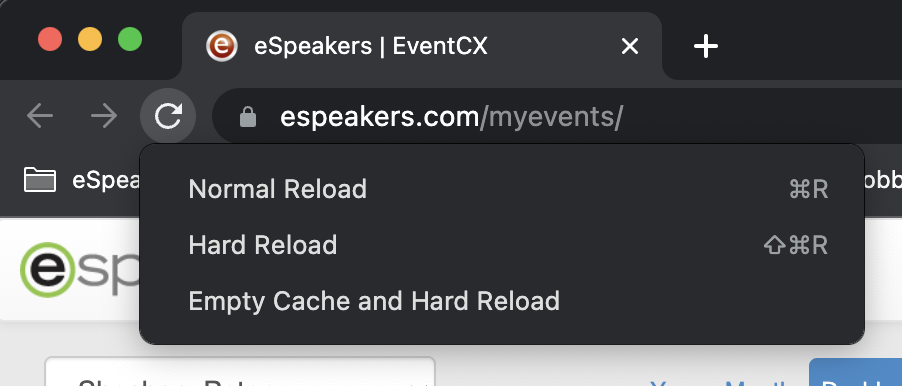
Right click on the event calendar and select “Inspect”. This will open a side panel that you can ignore for now. With the side panel open, you can right click on the Reload icon in the toolbar and select “Empty cache and Hard Reload”. Once you have reloaded the page, you can close the side panel.
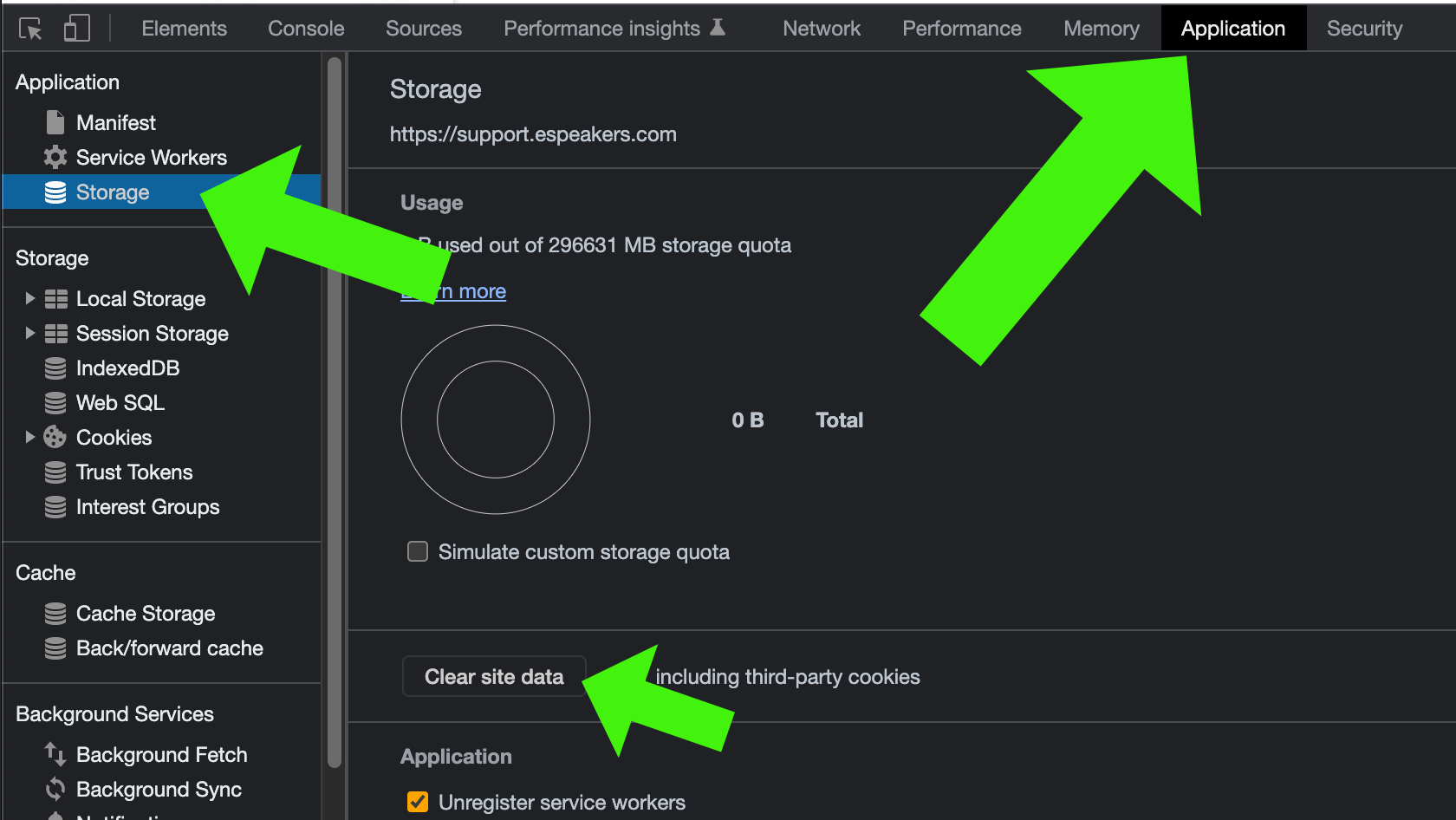
Right click on the event calendar and select “Inspect”. Again, this will open a side panel. In the side panel, select the “Application” tab (if you don’t see an application tab, click on the right pointing arrows and select “Application” from the list), then click on “Storage” (it should be the 3rd item from the top). Once there, you can click on the “Clear Site Data” button. Once you have cleared the site data, you can reload the page as you normally would and it should work. You can close the side panel as well.
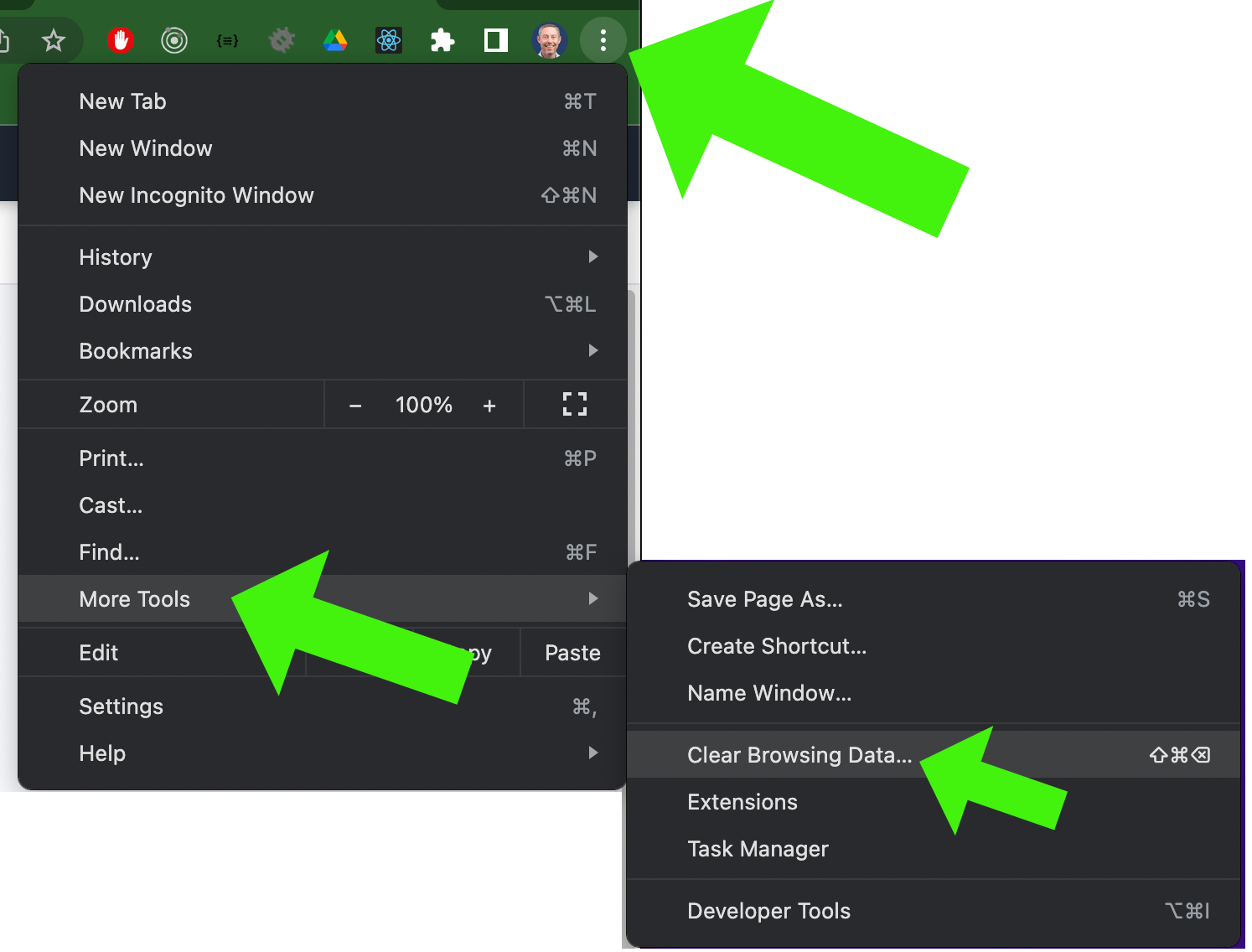
This technique clears data from other sites, too — not just eSpeakers.com. Click on the 3 vertical dots in the upper right of your browser and select “More Tools” -> “Clear Browsing Data”. This method will clear browsing data on all websites, not just espeakers.com, so we only recommend it when the other techniques above do not solve the problem.