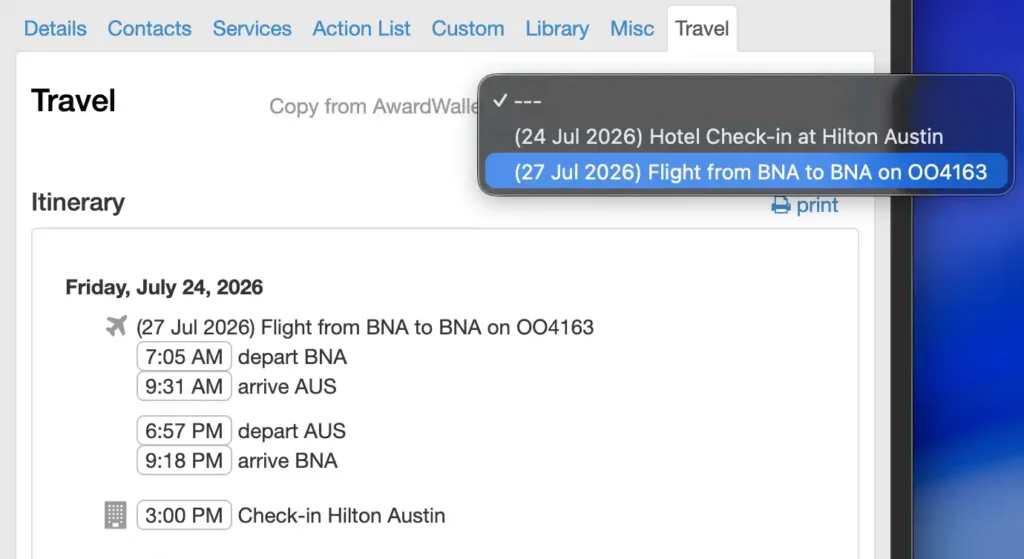
Your eSpeakers Calendar has all the information about each of your engagements, including your travel plans. You can manually type in air, ground, and hotel information. But there’s an easier way to do it: aggregate your travel plans using Award Wallet, and then attach those plans to the correct event in the eSpeakers Calendar. This pathway gives you full travel plans attached to the engagement, without ever having to hand-enter them.
Get a free AwardWallet account if you need one #
Register for an account at https://awardwallet.com/register.
You can use either their free or their paid account (“Plus”)
Link your AwardWallet account to your eSpeakers account #
- Sign in to eSpeakers.
- Choose the ESPEAKERS CALENDAR from the left sidebar menu.
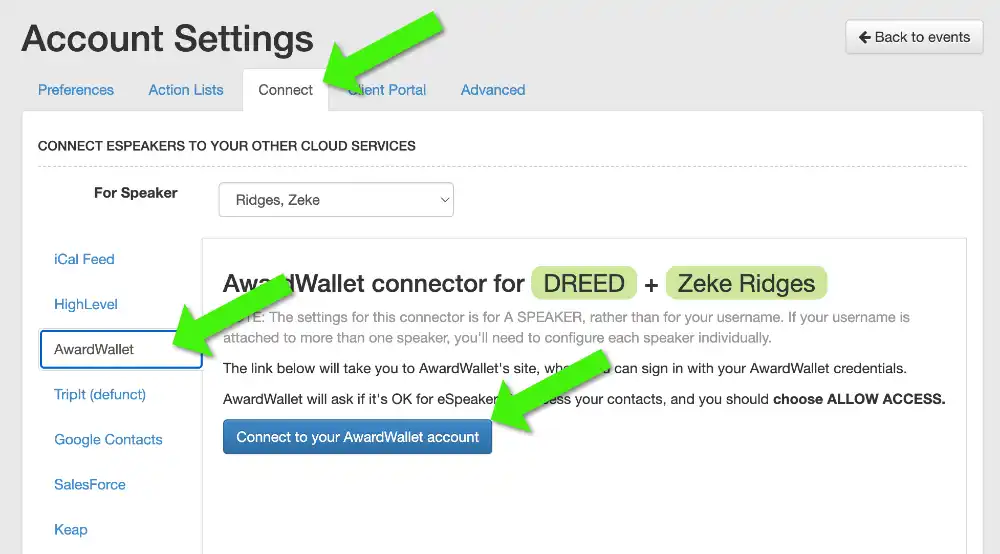
- In the eSpeakers Calendar, click your username in the upper-right corner and choose SETTINGS.
- On the Settings screen, choose the CONNECT tab, then the AWARDWALLET link from the left sidebar.
- Click the CONNECT TO YOUR AWARDWALLET ACCOUNT button.
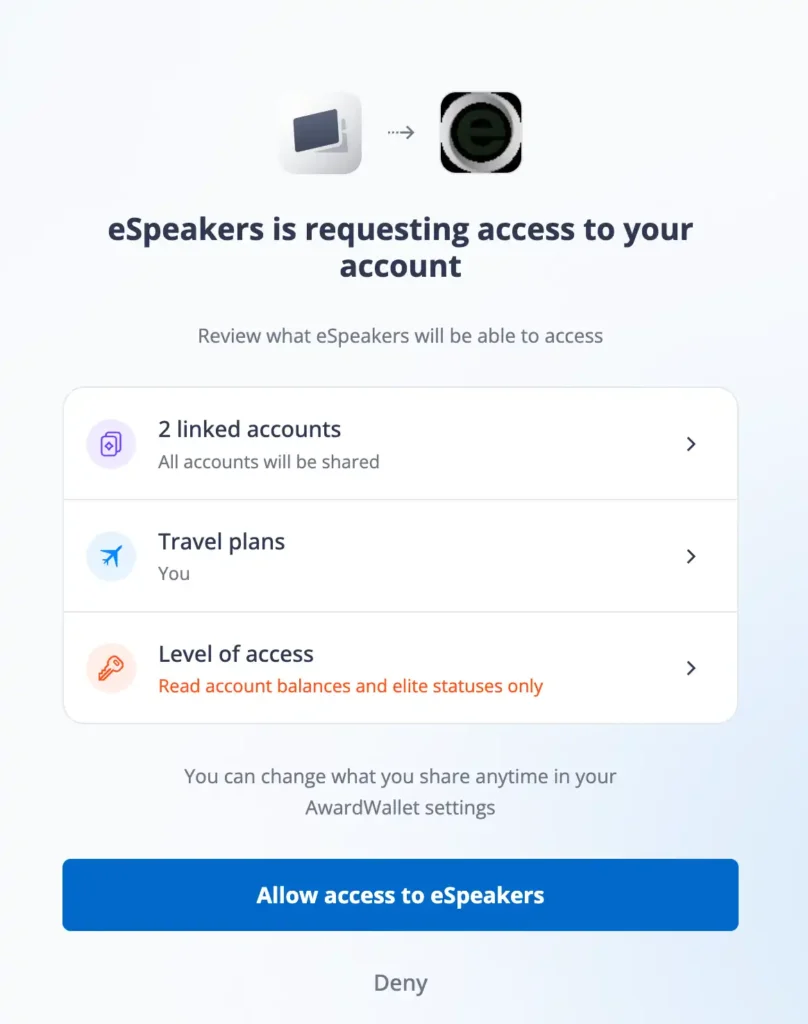
- A new page will open to awardwallet.com with text that says, “eSpeakers is requesting access to your account.”
- Click the ALLOW ACCESS TO ESPEAKERS button near the bottom of the page.
- After clicking the button, you should see your eSpeakers settings page again, with a confirmation message.
Start tracking your travel in AwardWallet #
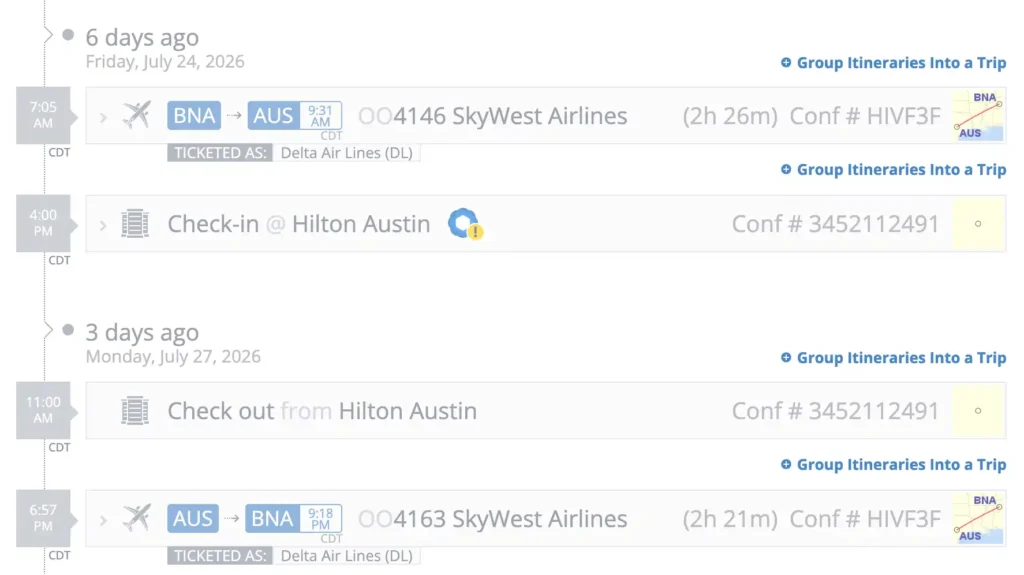
AwardWallet offers ways to automatically import and aggregate your travel plans. The easiest way is to give AwardWallet access to your inbox, so that it can extract the confirmation emails you get from airlines, hotels, etc. There are other ways.
See this article for details and start your travel plans flowing into AwardWallet: https://awardwallet.com/features/track-your-travel-plans/
Attach AwardWallet travel to engagements in your eSpeakers Calendar #
NOTE: Travel plans are copied to your event. If you update the plans in AwardWallet, you will need to repeat this process to replace the older plans on the event.
NOTE: The dropdown list will check AwardWallet for plans that are within the date range from 2 days before the start date of the current event through 2 days after the end date of the event.
- In the eSpeakers calendar, select an event and click the TRAVEL tab.
- Click the dropdown labeled COPY FROM AWARD WALLET. If AwardWallet has any travel plans that are near the date of your event (check the Stage Time), they will be displayed in the dropdown. Just select one to copy it to your event.